

Get Started
The first step is to have a well-written script or SOP of what you want to make. Before we create any sort of experience a designer would sit down and compile the whole experience together, which mentions every things that happens during the course of it and when user interacts with various objects. Its a document outlining step by step information about your story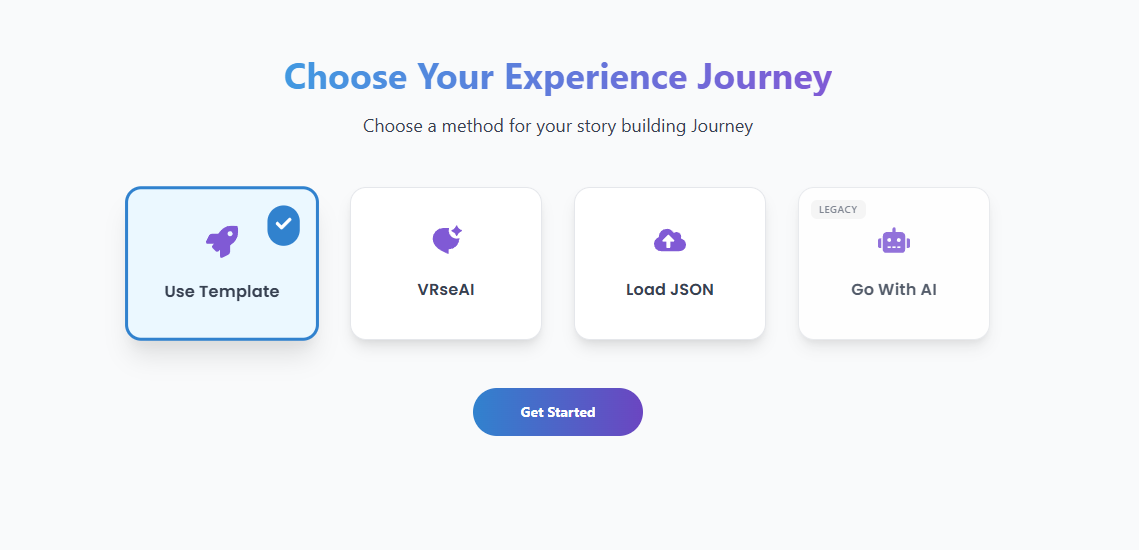
Create your Project & Module
Setup your workspace on studio, you can read a detailed doc here: Users & ProjectsGenerate Story with VRseAI
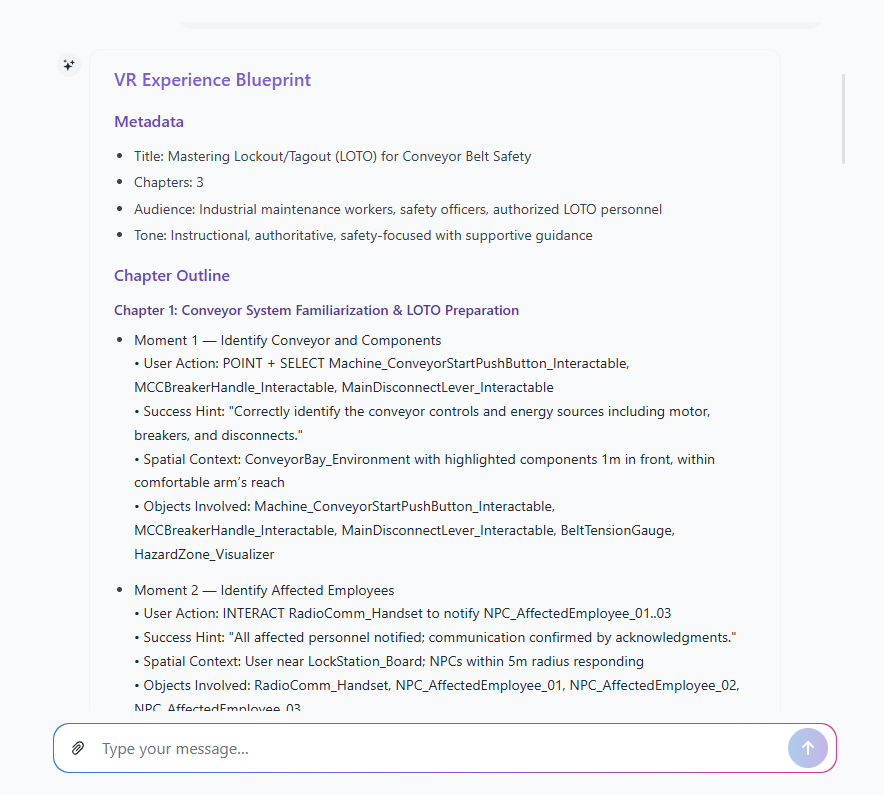
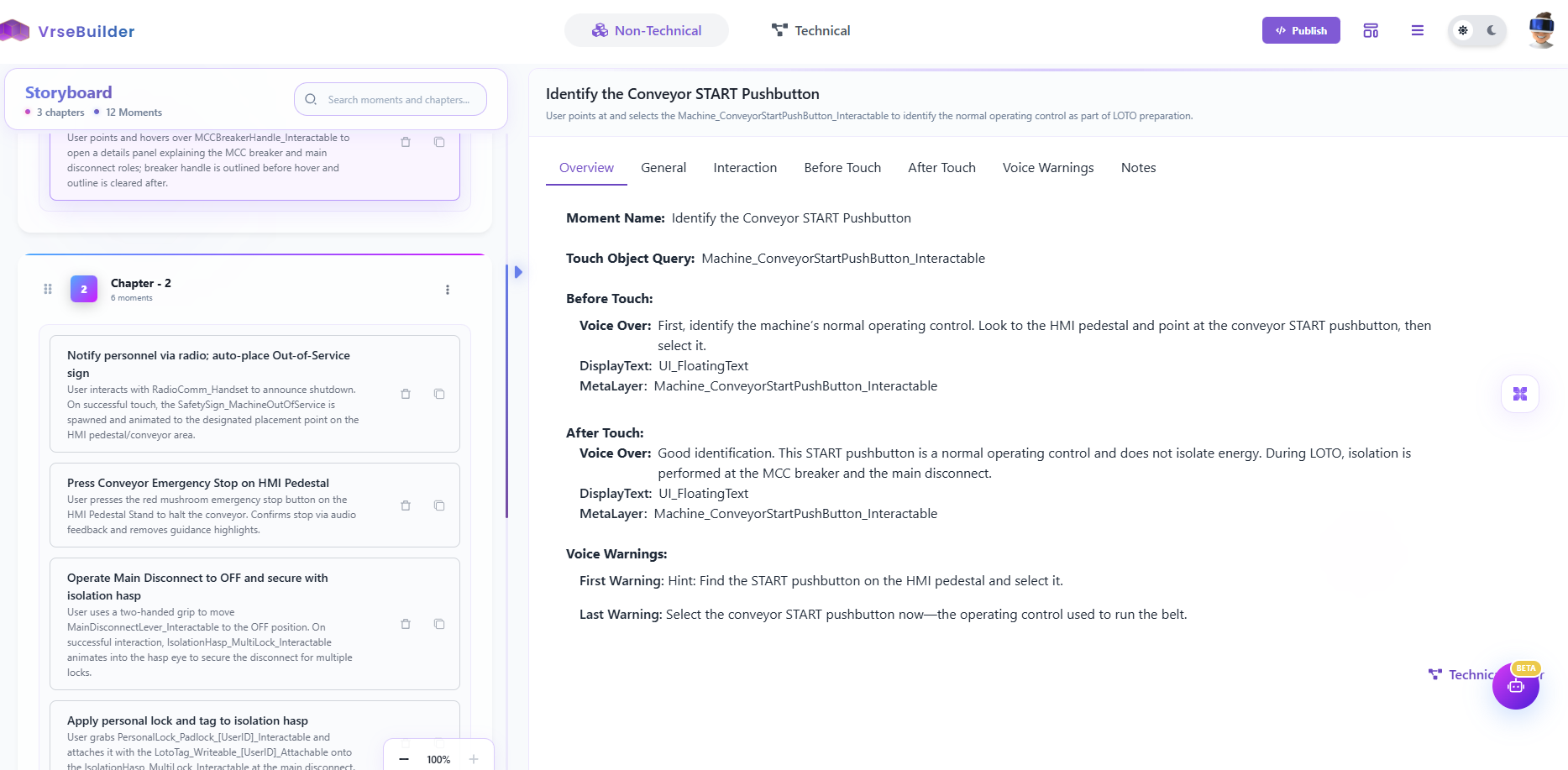
This is our new chat based interface which helps create a VR ready blueprint of your story. All you need to do here is give it a prompt of what kind of experience you want it to generate, you can go like “Create a VR experience for me for the following data: <Insert Data>”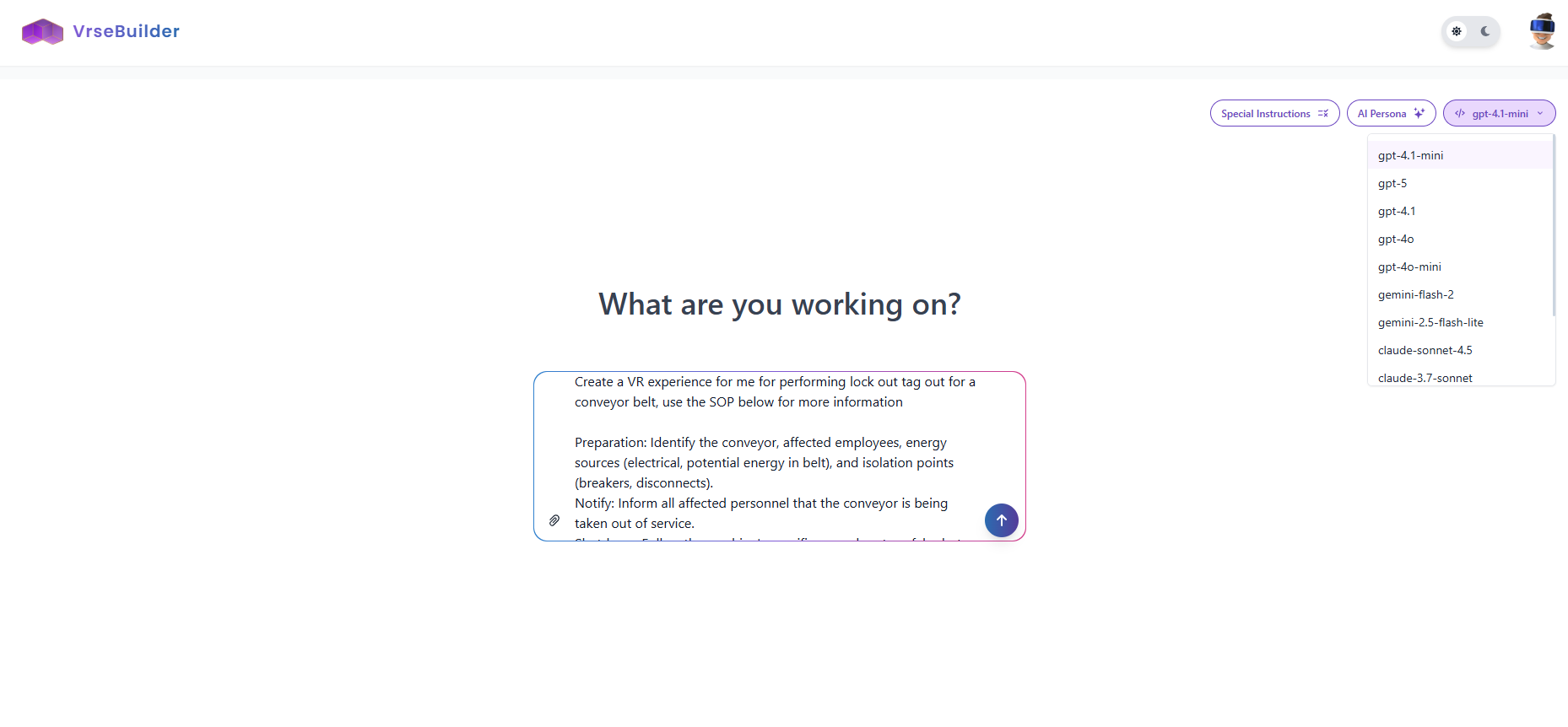
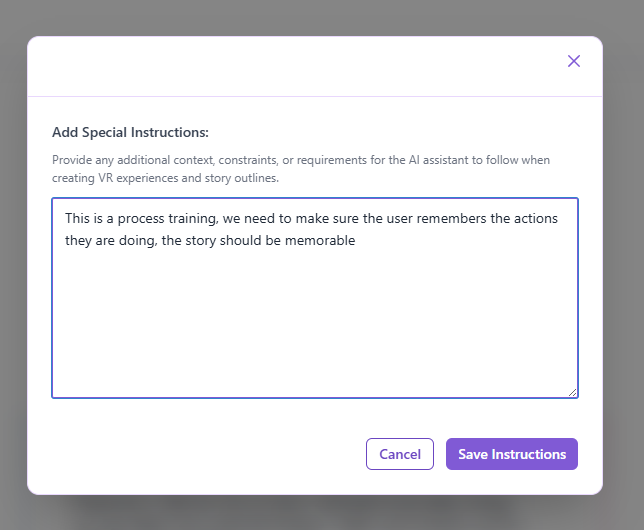
Special Instructions - Add any special instructions you want to give as a part of the system prompt
Legacy Guides
0.5.1
0.5.1
This guide is outdated as of Version 0.5.1
Get your SOP Document
You need a well-formatted SOP (Standard Operating Procedure) which has all the essential step-by-step information on how the training needs to be done.After you have your SOP ready, open VRse Creation Studio LinkBot 1 - SOP to VR SOP (SOP to V1)
In this step, we will convert our ready perfect SOP into a story that is fit for creating VR Experiences via VRse BuilderRemember you can only upload Text and Images to these bots, So convert any PDFs, Videos etc to a TEXT format.First, Enter the details in the form:Training Name - eg: Work at Height, Driving Forklifts, QA lab testingTraining Type - eg: Process/SafetyTraying Type of Docs Attached: SOPTraining Docs Text: Paste your SOP hereUpload Images: You can upload any images here (1 MB max Suggested per image)Once done press ‘Next’ and wait for the Bot to Generate the outputBot 1 will take approximately ‘4-5’ minutes to finish runningStep 1 - Add fields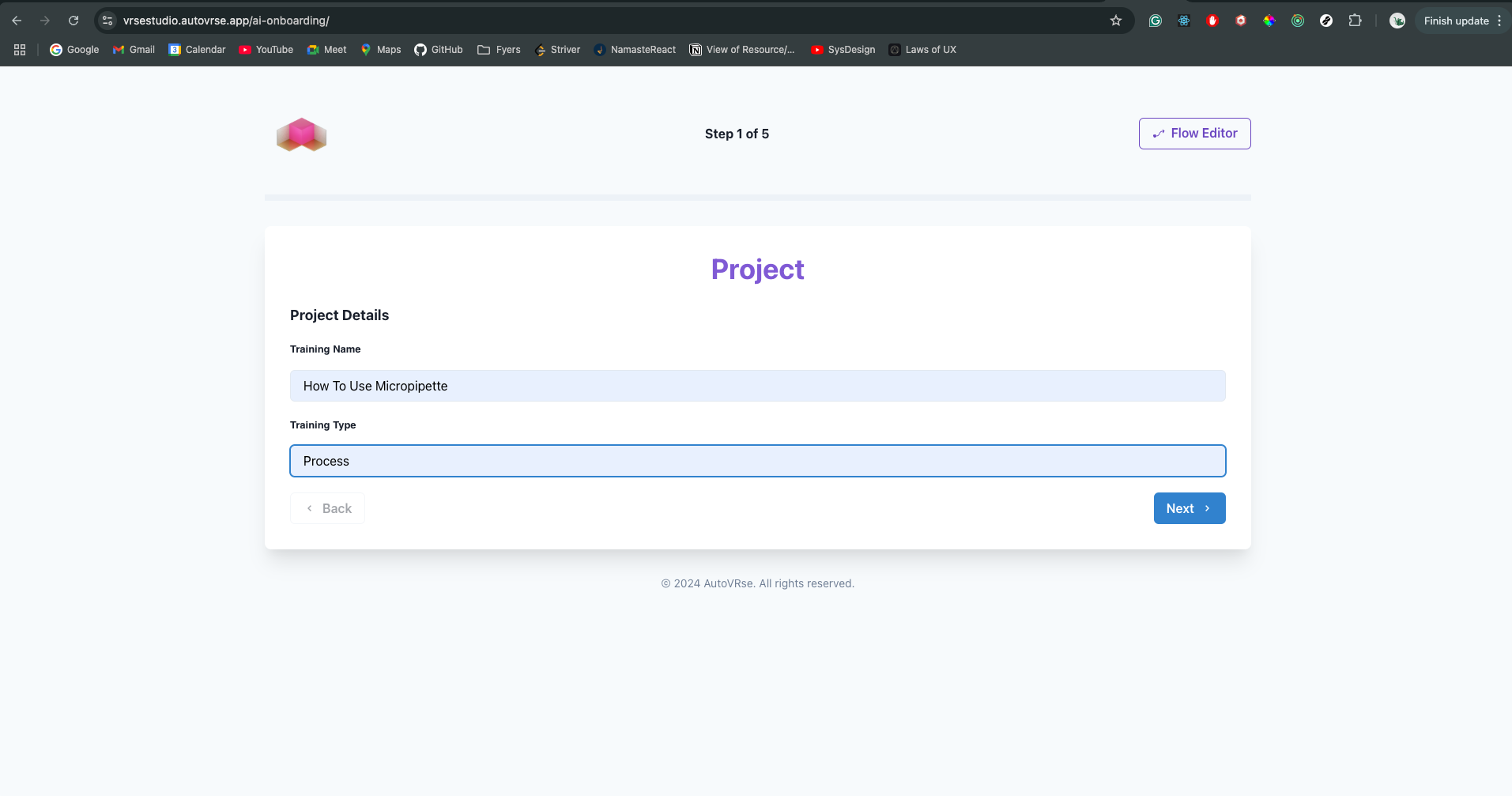

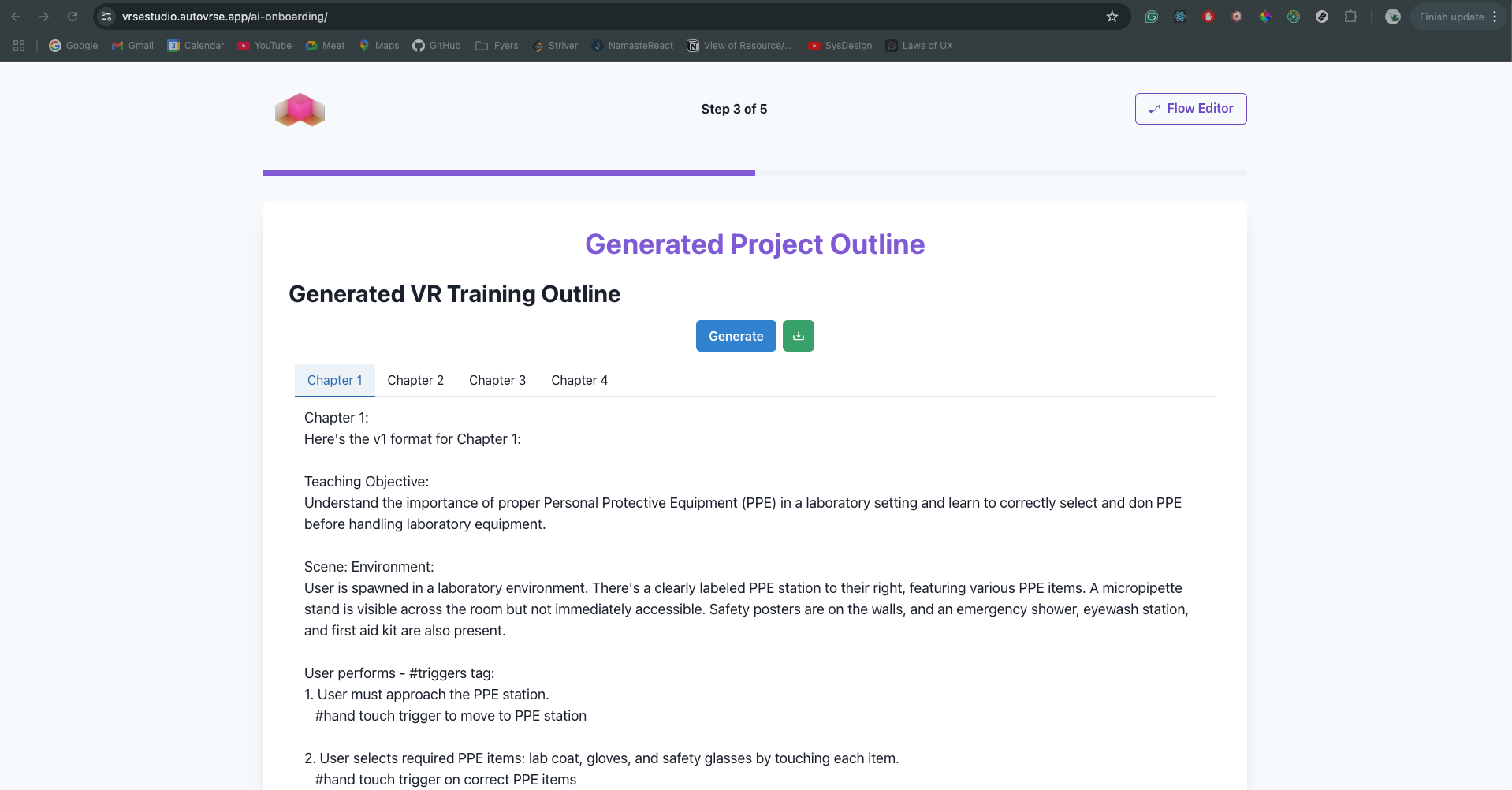
Bot 2 - VR SOP to VR Script (V1 to V2)
Now, we convert the V1 output to a vrse-builder readable format (JSON-like).You cannot edit this output, But if you are unhappy with the output you can always re-run the bot.Step 1 - Click on ‘Generate’ to Generate VRse Story - This is NOT editable.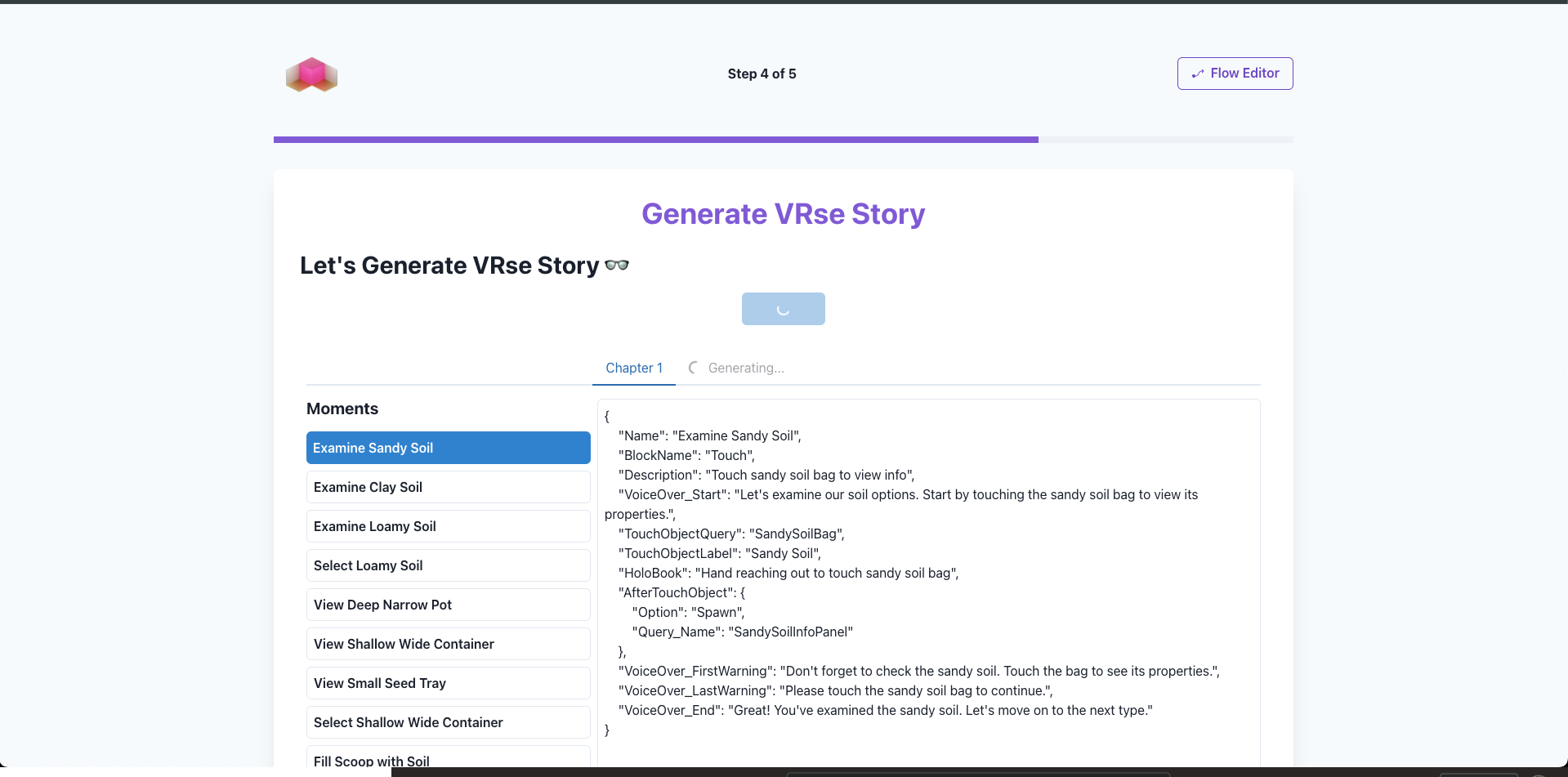
Editing in Studio
Final Step - Click ‘Proceed To Studio’ & Select a ‘Chapter’Here you can Edit add moments and Stuff.For now, we have ‘Touch Moment’ working, and the rest are in WIP. But you can still add and try to tinker. Have FUN!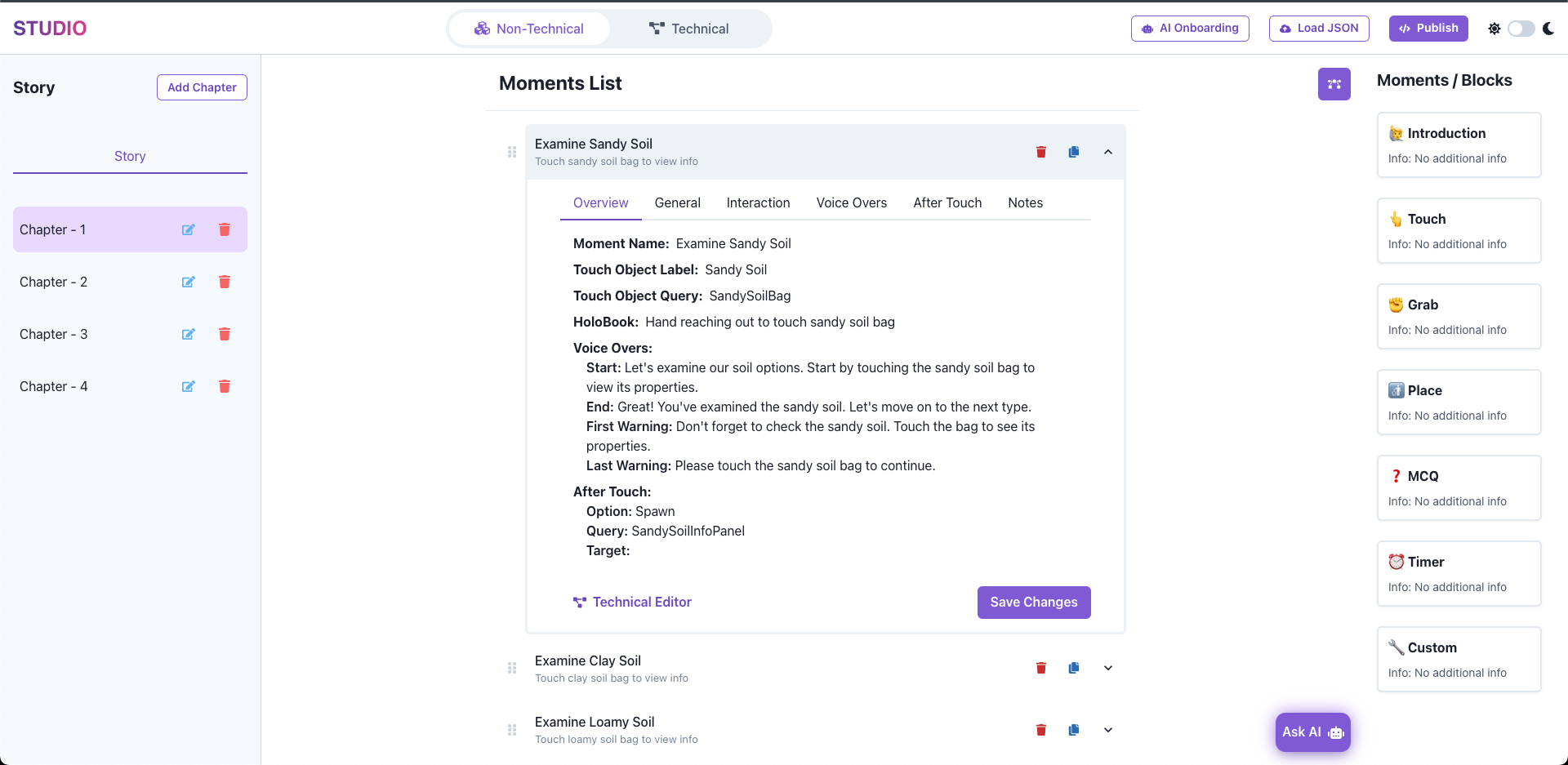
- Rearrange Moments,
- Duplicate them
- Edit content like - VoiceOvers - Touch Object, and Queries.