To start building in Unity, you would need to login on the interface just like you logged in on Studio, you can read more about it in the documentation for Cloning your project in Unity You should have already created your story on Studio and published it as mentioned in the doc Build your story with AI Chat
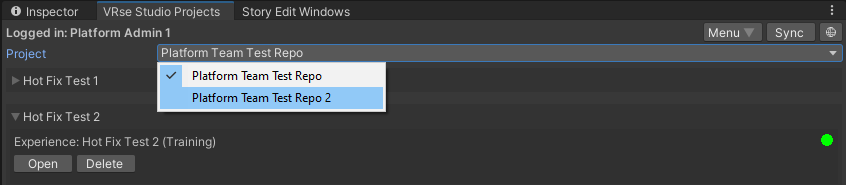
Selecting Your Project
- In the VRse Studio Projects window, locate the Project dropdown menu
- Select your desired project from the list
- The dropdown displays all projects associated with your Creator ID
Create your Workspace and Folder Structure
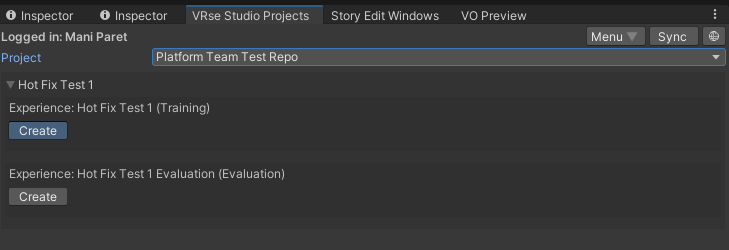
Select Module- In the VRse Studio Projects window, choose the module you want to work with
- Click the Create button
- Open Project Config: Provides access to project configuration settings
- No Art Scene Assigned: Used for assigning visual scenes
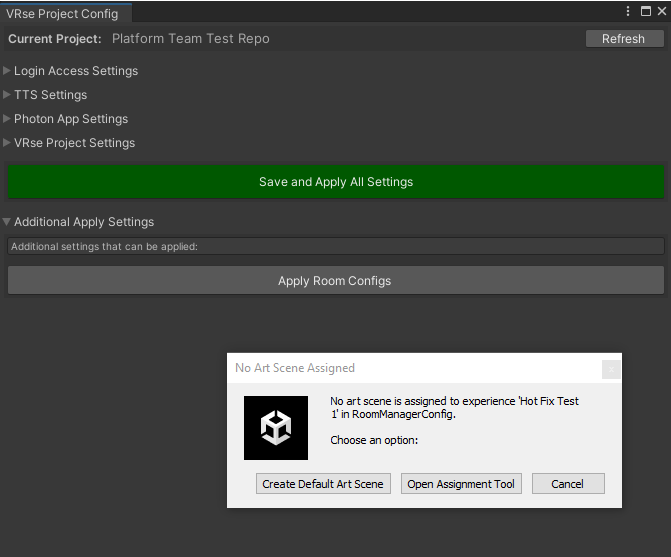
Configure Project
The Project Config window centralizes all project-specific settings and automatically applies them to Unity components.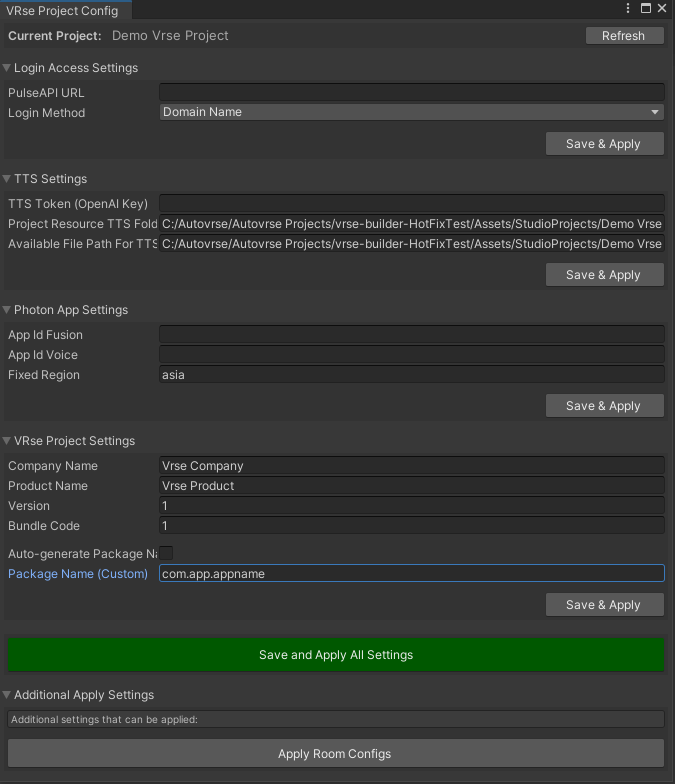
Login Access Settings
- PulseAPI URL: Backend API endpoint for your project
- Login Method: Authentication method (typically “DomainName”)
Text-to-Speech (TTS) Settings
- TTS Token (OpenAI Key): API key for OpenAI text-to-speech services
- Confirm auto-generated paths for
Project Resource TTS Folder PathandAvailable File Path For TTS
Photon App Settings
- App Id Fusion: Application ID for Photon Fusion multiplayer services
- App Id Voice: Application ID for Photon Voice communication services
- Fixed Region (Optional): Preferred server region for network optimization
Unity Project Settings
- Company Name: Publisher/developer name for Unity build
- Product Name: Application name
- Package Naming Method: Choose “Auto-generate” or “Custom”
Complete Setup
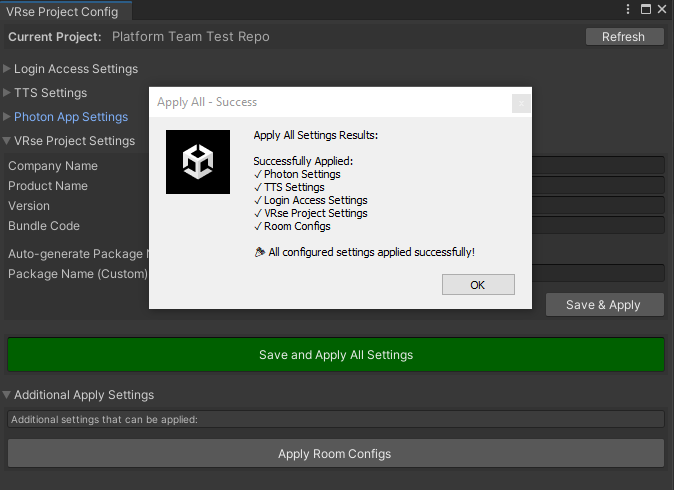
- After configuring all sections individually, click the large green Save and Apply All Settings button
- This master control saves all settings and applies them to respective Unity components
- Ensures complete and consistent project setup
Preview Story in Unity
Once the project setup is completed as above, we can now “Open” our module and preview the scene, it will start off as two empty scenes, one is a “Dev” scene and one is an “Art” scene Dev Scene - This scene holds all important code and systems that make the VR application run, the systems here can read the AI generated story from Studio. This scene is also meant to hold all the interactables assets of the story, the kind which will be interacted by the user. Art Scene - This scene is meant to hold the static environment assets that are part of your experience, typically your art teams will have an environment which is light baked, this scene is to provide them with a separate space to work and experiment in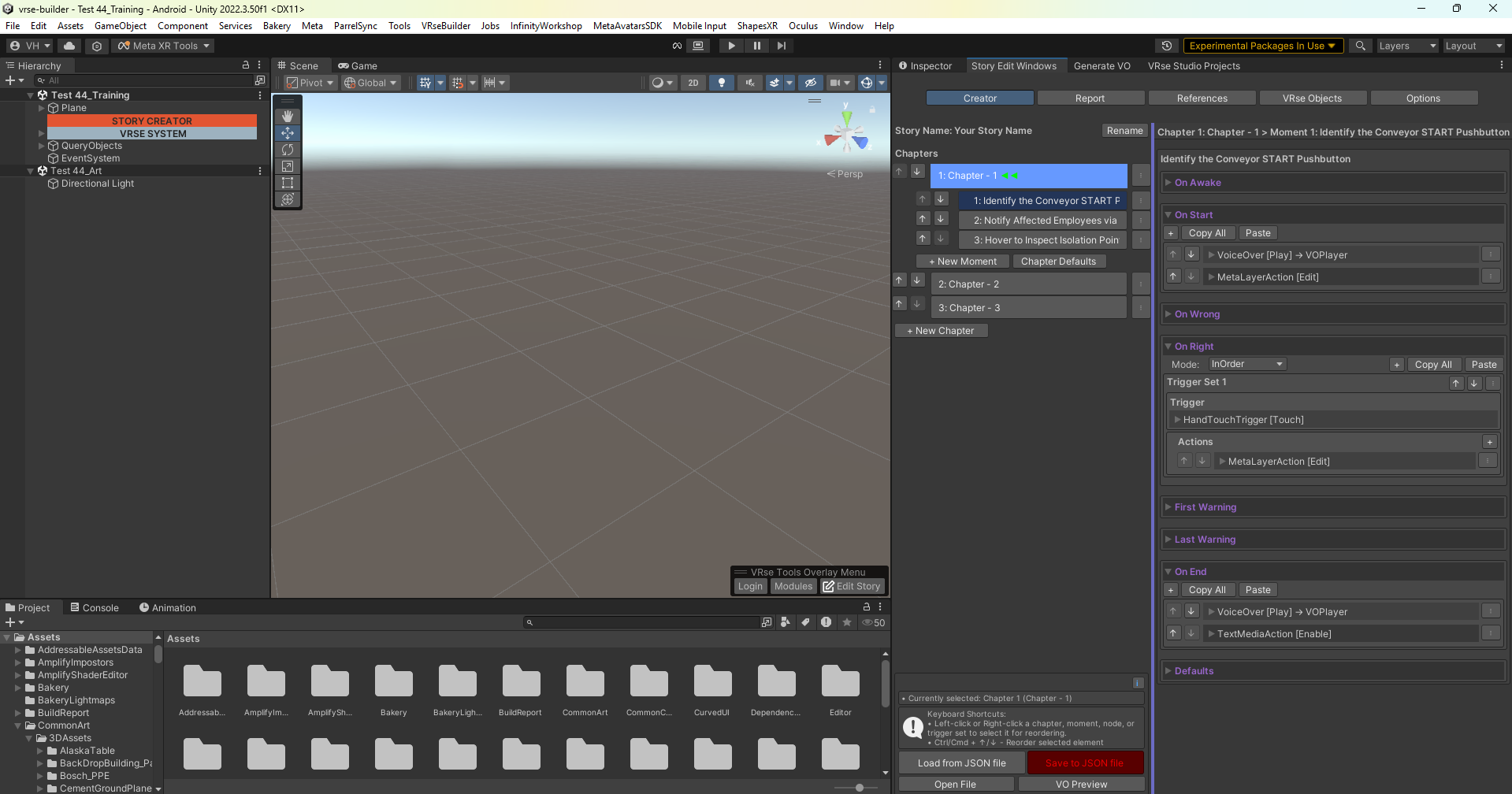
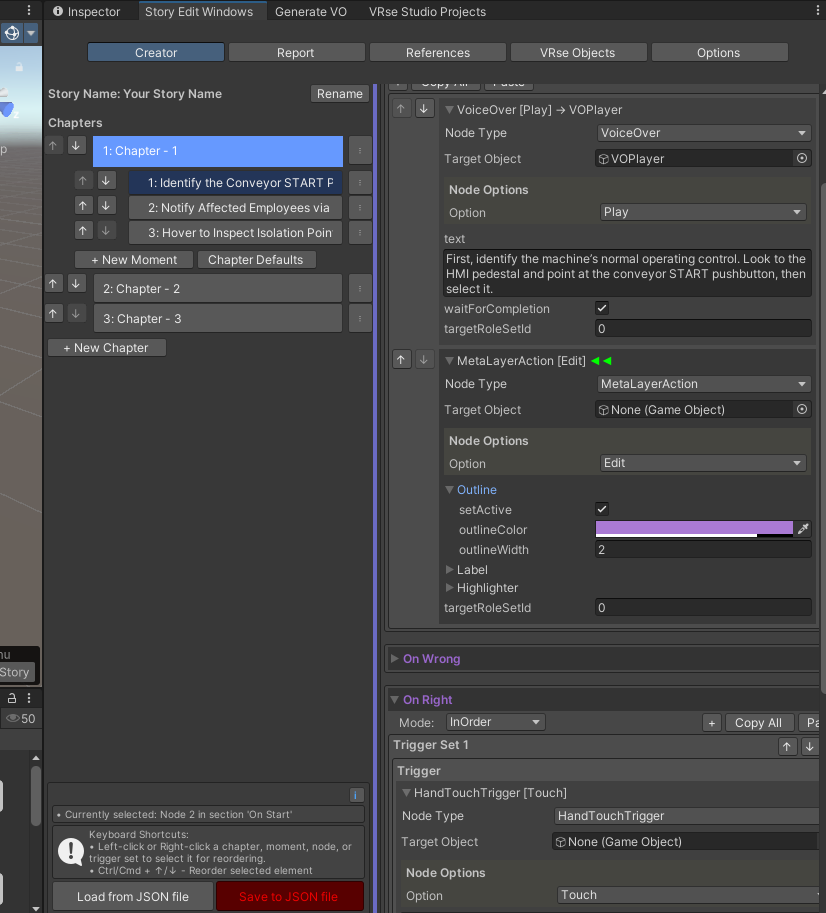
This window will have a very familiar view which breaks down the story in Chapters and Moments, and you can click each moment to see further details on what is happening in the moment similar to Graph View So far, we have a high level story, a machine readable structure for it, our Unity project and folder structure setup done, now we can truly start working on the 3D aspects of the same.
Adding 3D Objects to the Scene
There are two ways we can proceed with this, either we add our own 3d models or use the VRse Builder DAM and import some models Add your own 3D Models - This works the regular way, create a nice folder to save all your assets and drag and drop them into Unity into that folder, how you would do for any other Unity project, Unity will process your objects, create materials and texture files for the same and get a prefab ready for use on the scene. Next, go ahead and drag and drop this model onto your “Dev Scene” Add from Infinity Workshop (VRseDAM) - You can also use your 3D models uploaded on Infinity Workshop at this stage, simply drag and drop the models from the Interface onto your “Dev Scene” If you are not aware of how Infinity workshop works, read more about it hereMake your Objects VRse Compatible
To make any object come to life with logic and scripting, we need to add components to it, you might be familiar with this process if you have used Unity before, we need to do the same for VRse Buidler as well, thankfully there is tooling to help with the same Simple go to “VRse Objects” tab of “Story Edit Window” and you will see an interface like below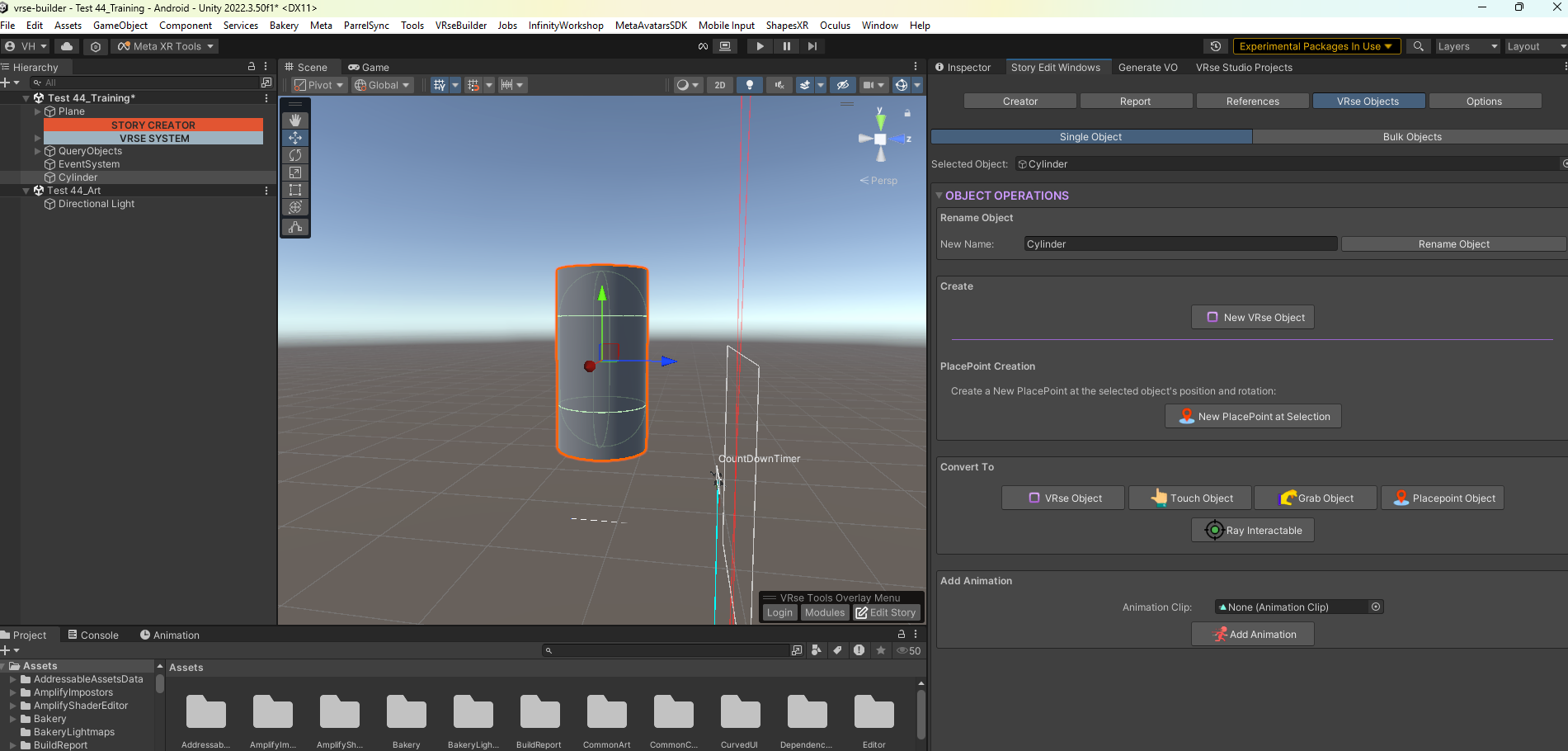
- Create VRse Object - Create a basic GameObject capable of being tracked by the Story
- PlacePoint Creation - Interactive creation of placepoint
- Convert To
- VRse Object - Create a basic GameObject capable of being tracked by the Story
- Touch Object - An object that can touched by user using and detected using the HandTouchTrigger
- Grab Object - An object that can be grabbed by user and detected using the GrabbableTrigger
- Placepoint Object - Create a placepoint object at the position of the current object, grabbable objects can be placed here and detected using PlacePointTrigger
- Ray Interactable - An object that can be detected using the hand ray-pointer by user
- Add Animation - This adds the necessary components for Animation to be playable using the AnimationAction
Assign References
Once you have the right type of VRse Objects you need created, simply assign them to the TargetObject field in the Story Creator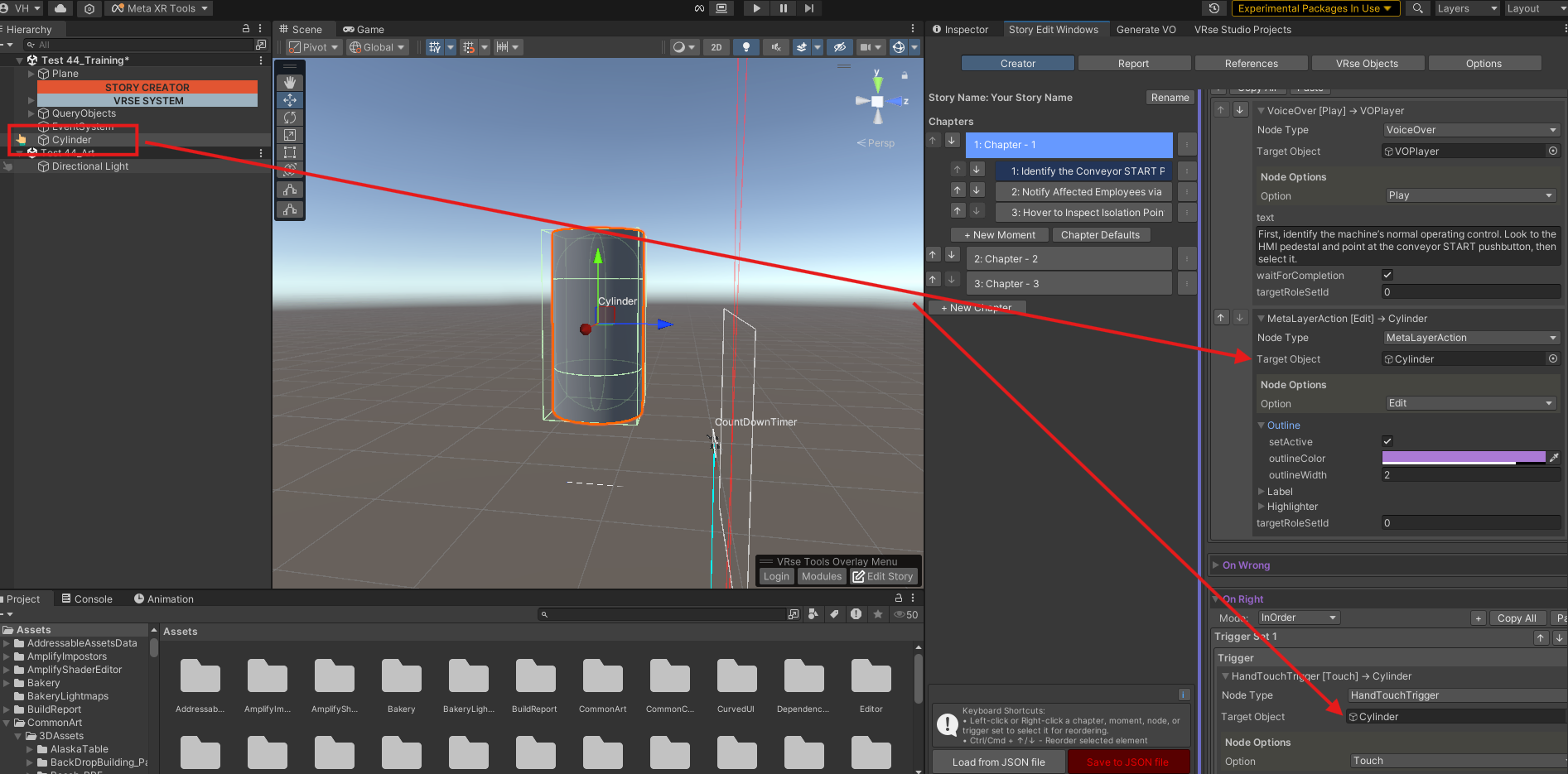
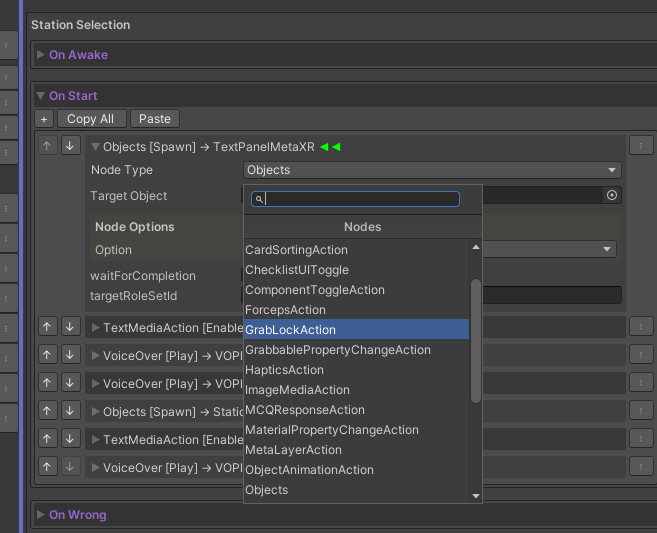
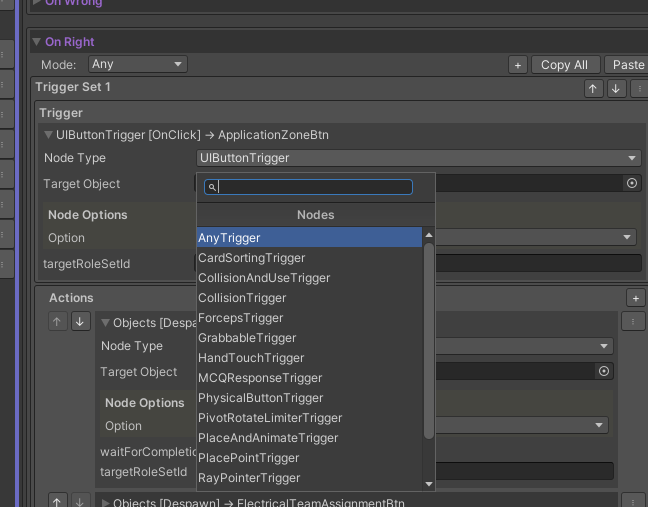
Generate VoiceOvers
After you have made edits to your story, there is still one step that you need to do before you can play, the experience would still work at this point but there will be no voice overs! To generate the VoiceOvers using the TTS services, click the “VO Preview” button below the save button and you will see a window like below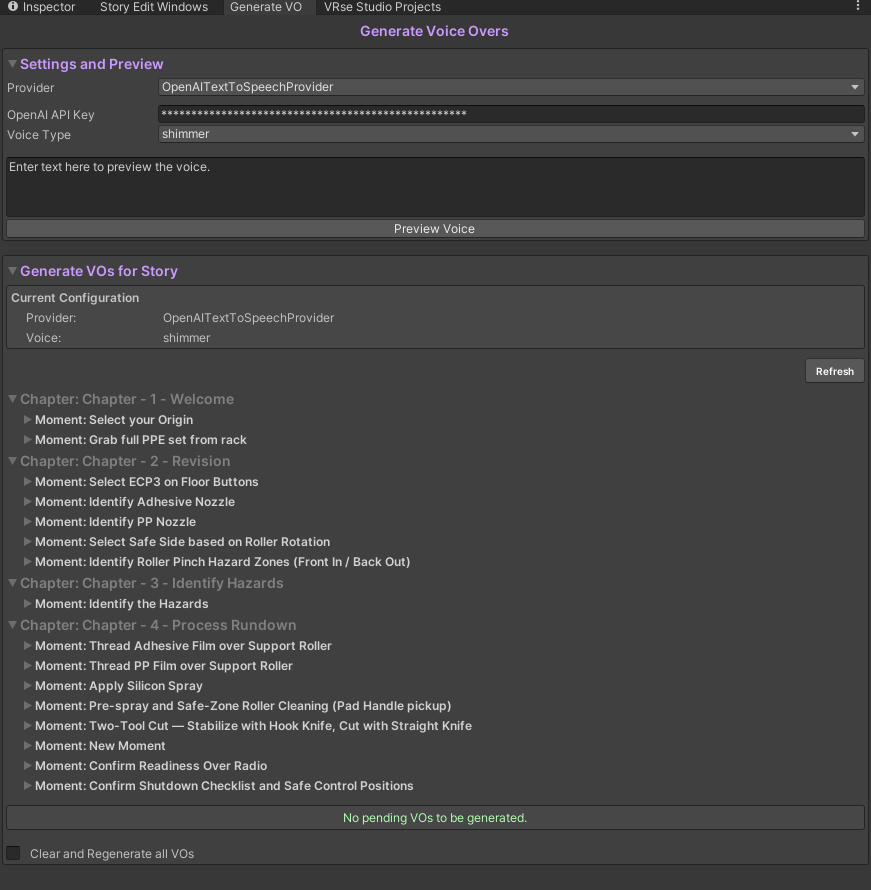
Play
Just hit play!VRseMachines Window (Early Access)
This is a collection of prefabs of our library of interactables, each interactable in this list can be controleld by actions and triggers Access this window from VRseBuilder > Building Blocks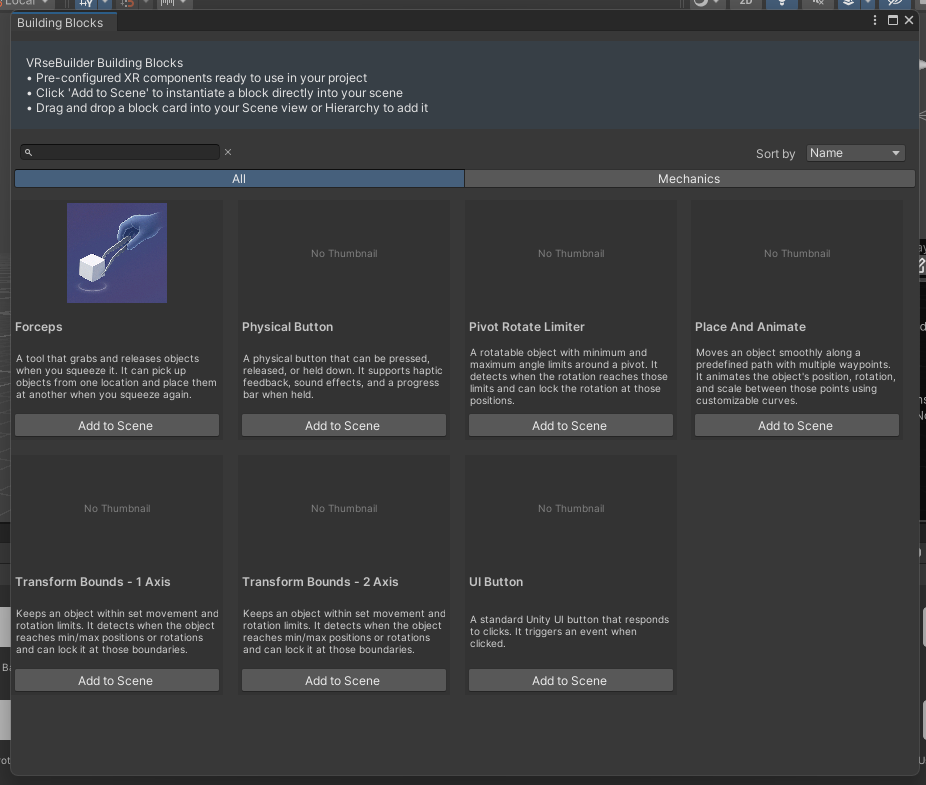
Sync story with Studio
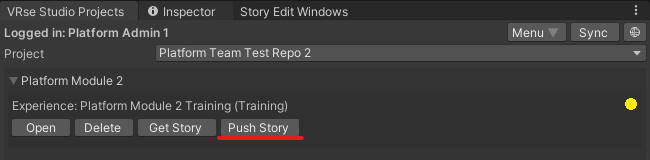
Synchronize story files between your Unity local environment and Studio using the sync functionality. Go to VRse Studio Projects window and hit “Sync”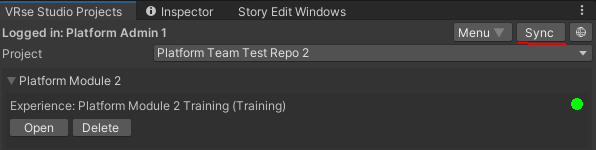
- 🟢 Green: Local and cloud versions are in sync
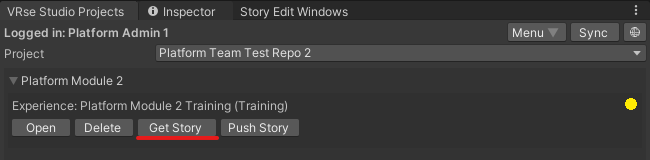
- 🟡 Yellow: Out of sync - local and cloud versions differ
- 🔴 Red: Error occurred during sync status check
- ⚪ Gray: Currently checking sync status
-
“Get Story”: Downloads the latest story version from Studio to your local environment
- Use when: Status is yellow (🟡) and you want the cloud version
- Use when: Starting new development work
- Use when: Collaborating with others who have made changes
-
“Push Story”: Uploads your local story version to Studio
- Use when: Status is yellow (🟡) and you want to upload your local changes
- Use when: You have completed local modifications
- Use when: You want to share your work with collaborators